When a change is finished, the code and the ticket that asked for it can easily end up telling two different stories. The code has moved on and a screenshot of the result is saved somewhere, yet the person who opens the ticket next still finds only the original description and needs someone to explain what happened. When a coding agent, an AI assistant that can read and change code, does part of that work, it needs to leave that explanation too, which means reaching the same system where the team follows the task. For the teams I had in mind, that system is a self-hosted Jira Server.
I made Jira CLI so those everyday ticket steps can happen in the terminal, where the work on the code is already going on. With it, I or an agent working with me can read an issue and check its status, then prepare a comment or attach evidence. The commands return structured results that an agent can read, and each one calls Jira directly and exits, so an agent can use it without first starting an MCP server, the separate connector process that many agent setups run for this kind of access.
Put simply, Jira CLI is a short set of verbs for ticket work: mine finds your issues, show opens one, and comment prepares an update. A few supporting pieces sit around those verbs. Named profiles hold each connection, with credentials kept in the OS keychain by default; changes default to dry runs, so nothing is written to Jira until you ask for it; and an optional skill gives an agent the setup and workflow guidance. It is an independent project for teams using self-hosted Jira Server.

When the agent picks up the ticket
Before changing code, the agent needs to read what was requested. mine lists your unresolved issues, and show opens the contents of one, so the agent knows the task before it touches code or writes anything back to Jira.
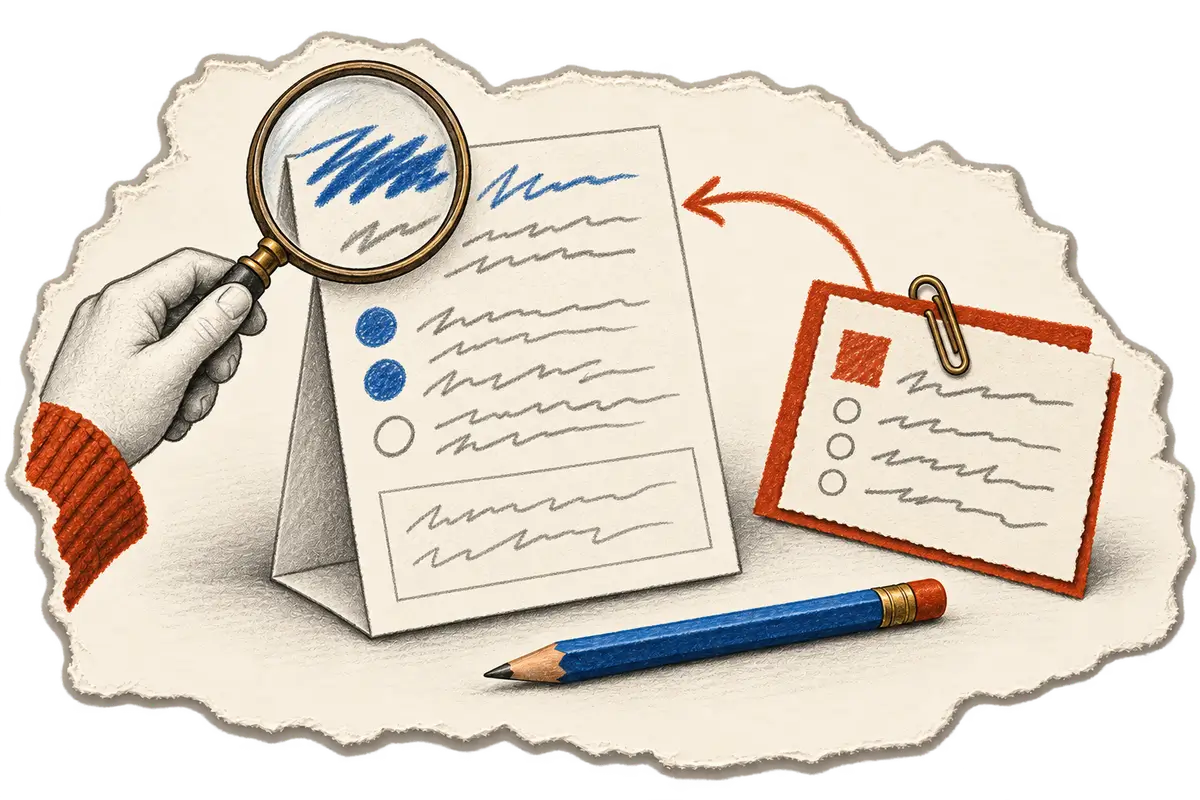
When the update is ready to send
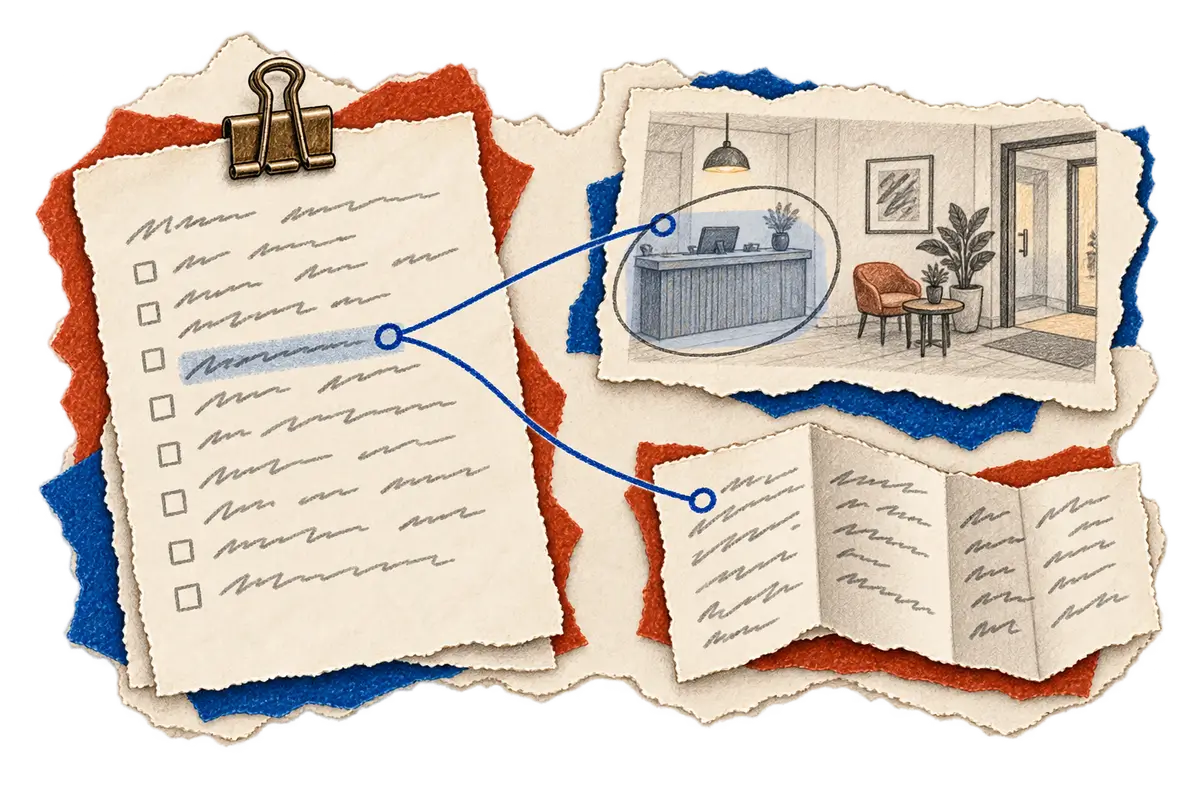
Once the change is made, the agent drafts its explanation with comment. Because changes default to dry runs, the command shows the comment instead of posting it, which gives you a chance to check that the issue is the intended one and that the wording matches what actually happened. Once you have reviewed the preview and authorized the update, the agent should run the command again with --perform-action to post it. An image or a log can sit beside the explanation when it helps someone repeat a check, either uploaded and embedded in the comment or attached as a file.
When the next person opens the ticket
Knowing where the change can be tried is often more useful to the next person than another short success message, and the handoff story goes further into what such an update should contain.
How I work on Jira CLI
I lead Jira CLI's development and define the workflow an agent follows: read the issue, preview the update, and carry out only a change the user has authorized. Coding agents produced much of the implementation, while I review their code changes and try the commands myself to check that they follow that workflow. For a similar tool, I would make writes previews by default and require an explicit flag to send them.
Connect Jira CLI and prepare an update
Set up a connection
The tool targets Jira Server 7.x and REST API v2, and the documented runtime is Node.js 18.17 or newer. You also need an account on the Jira Server instance you want to reach.
npm install -g @khanglvm/jira-cliCheck existing profiles before creating another. For a new connection, set JIRA_USERNAME and JIRA_PASSWORD locally and use your server's address:
jira-cli profile add work \
  --base-url https://jira.example.com \
  --username "$JIRA_USERNAME" \
  --password "$JIRA_PASSWORD" \
  --default
Credentials go into the OS keychain by default, so keep them out of chat and source files. Named profiles let you keep separate accounts or workspaces apart; inspect them with jira-cli profile list and select one with jira-cli profile use work.
Try the path from issue to comment
Start with your unresolved issues:
jira-cli mine --max-results 10Choose an issue key from that list and use it in place of PROJ-123:
jira-cli show PROJ-123
jira-cli comment PROJ-123 --body "Investigating the login issue."
The second command only previews the comment. After inspecting it, add --perform-action for an authorized update:
jira-cli comment PROJ-123 \
  --body "Investigating the login issue." \
  --perform-action
Use --inline-image screenshot.png to upload and embed an image, or --attach notes.txt for a file. Either way, the evidence should exist and support the explanation that goes with it.
Search, transitions and agent instructions
Search accepts JQL or common filters:
jira-cli search --reported --order-by "priority DESC"The interface also supports board queries, work logs and issue links. Before moving an issue, inspect the transitions the project offers, and keep in mind that an issue type such as Bug and a status such as In Progress describe different things, and that the configured account needs permission for the requested change.
The optional skill supplies setup and workflow guidance:
npx skills add khanglvm/jira-cli --skill jira-cli -yWith it installed, ask an agent to check profiles, read the issue and preview the proposed update. It should use --perform-action only for an authorized change, then report the issue key and result. jira-cli easy provides command examples, the usage guide covers transitions and assignment, and the package is on npm.